With Connect AI on, your AI tools use the skills, agents and instructions you mark Available to AI tools in Skill Builder. By default they take them from the project you have open, so the list changes when you open another project.
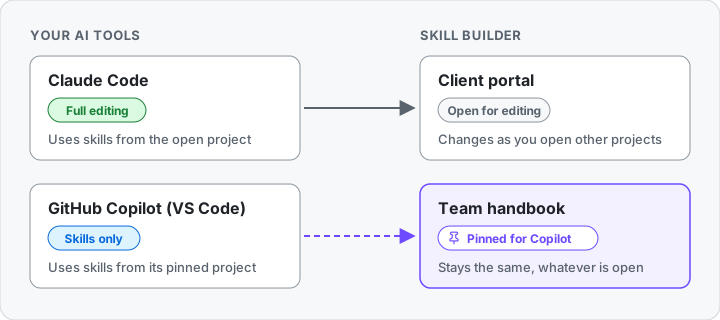
Pin a project to an AI tool to keep that AI tool on it, whatever you open. Pins are per AI tool, so you can run two at once with different jobs:
- Claude Code with Full editing builds and changes whichever project you have open.
- GitHub Copilot with Skills only keeps using your team handbook’s skills while you work.
When to pin a project
Pin when an AI tool should keep the same guidance for a while:
- One set of house rules, many projects. Keep your coding standards, review checklist and
AGENTS.mdin one project and pin it for the AI tool you code with. Open and edit other projects without changing what it follows. - A helper and a builder side by side. One AI tool edits skills in Skill Builder (Full editing); another only uses finished ones (Skills only, pinned). Editing a draft never changes what the helper reads.
- A stable set while you experiment. Pin the version your AI tool should use, and try changes in a copy.
You do not need a pin when you only use one project, or when you want the AI tool to follow whatever you open.
Pin when you connect
- Turn on Connect AI in Settings and ask your AI tool “What is open in Skill Builder?”. It shows a pairing code.
- In the Connect …? dialog, type the code and choose Access: Full editing or Skills only.
- Under Skills from, choose a project. Each one shows how many items it shares. The project you have open means no pin.
- Select Connect.
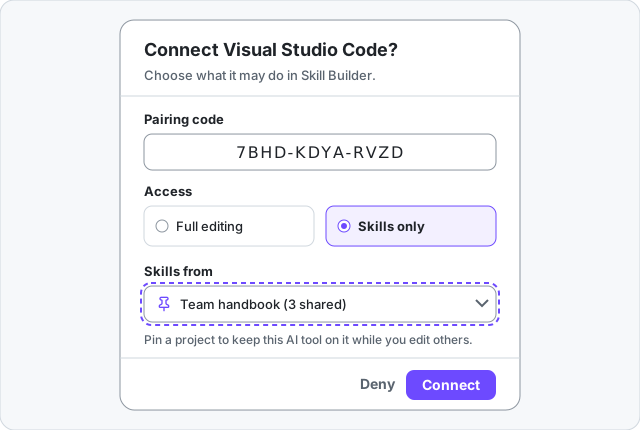
The dialog remembers each AI tool’s choice: the next time it connects, Skills from starts on its pin.
GitHub Copilot connects under the name of its editor, Visual Studio Code, so that is the name you see in Skill Builder. One pin covers every Copilot chat in that editor.
Change or remove a pin
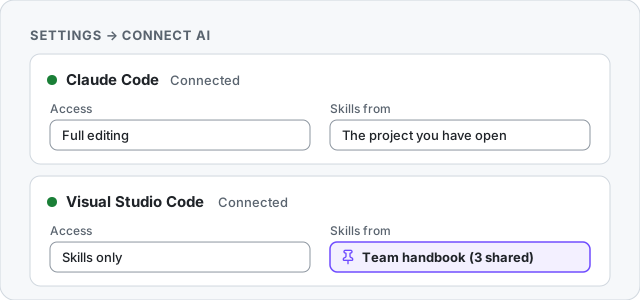
- Settings → Connect AI. Each connected AI tool has two choices side by side: Access and Skills from. Pick another project, or The project you have open to unpin. A change applies to the AI tool’s next request, and its slash commands update at once.
- The AI menu in the header. Pin a project for … (or Change pin for …) opens the same choice for each connected AI tool.
- AI tools that are not connected keep their pins. Settings lists them under Pinned for AI tools not connected now, with Change and Unpin.
See what is pinned
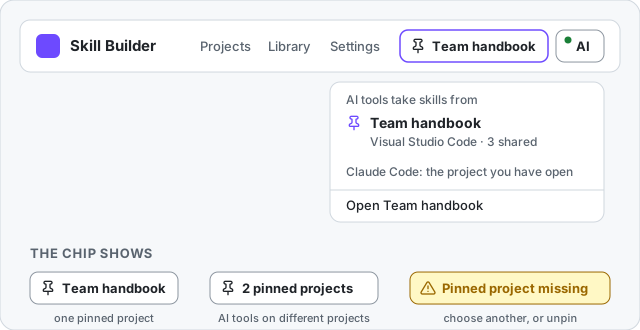
While any AI tool is pinned, a pin chip shows in the header on every page, next to the AI menu. It can not be hidden: when an AI tool reads from a project you are not looking at, you should always be able to tell.
- One pinned project: the chip shows its name.
- Several: it shows how many, for example 2 pinned projects.
- A pinned project was deleted: the chip turns amber and says Pinned project missing.
Click the chip to see each pinned AI tool, its project and how many items it shares, which AI tools follow the open project, and to change a pin.
When you share an item in a project that an AI tool is not pinned to, the Available to AI tools switch says which AI tools will not see it.
What a pin changes, and what it does not
A pin changes, for that AI tool only:
- Where its
use_skilland slash commands come from. - What
get_statusanduse_skillreport as the source (sharedFrom).
A pin does not change:
- What is shared. Only items marked Available to AI tools are used.
- The question you are asked the first time an AI tool uses an item.
- Editing. An AI tool with Full editing still changes the project open in Skill Builder.
- Other AI tools. Each has its own pin, or follows the open project.
A project with nothing shared can be pinned. The AI tool then gets nothing from it until you share something there.
If a pinned project is deleted
Deleting a project in Skill Builder unpins every AI tool pinned to it, and the delete question names them. If the project disappears another way, for example cleared browser storage, that AI tool gets nothing, never the open project instead, until you choose another project or unpin. Skill Builder never switches an AI tool to different guidance without you knowing.
Where pins are kept
Pins are kept in this browser, on this device, by the AI tool’s name, the same in every tab. They are not part of a project, so they are not synced, exported or shared with anyone. Like Connect AI, they show on computers only.