You do not need to be a developer to use this. If you can fill in a web form and copy and paste, you can do every step below. It takes about 15 minutes the first time, and about 10 seconds each time after that.
What this does, in plain words
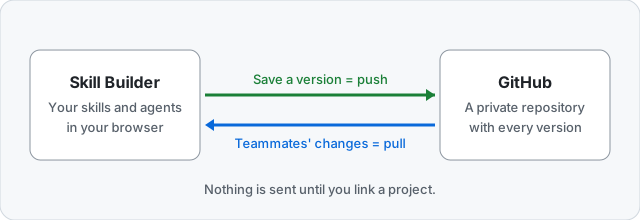
Skill Builder keeps your work in your browser. GitHub sync adds one extra thing: every time you save a version, a copy goes to a private folder on GitHub (called a repository).
That gives you three things:
- A safe copy that is not only on your computer.
- A shared copy. Your teammates see the same skills and agents you do, and get your changes.
- A history. GitHub keeps every version, so you can see what changed and when.
It is optional. Nothing is sent anywhere until you link a project. Skill Builder always works without it.
Words you will see
| Word | What it means |
|---|---|
| Repository (or “repo”) | A folder on GitHub that holds your project. Yours will be private: only people you invite can see it. |
| Commit | One saved snapshot in GitHub’s history. Every version you save in Skill Builder becomes one commit. |
| Push | Send your saved version to GitHub. |
| Pull | Bring other people’s changes from GitHub to your screen. |
| Token | A long password you create on GitHub that lets Skill Builder use one repository for you. |
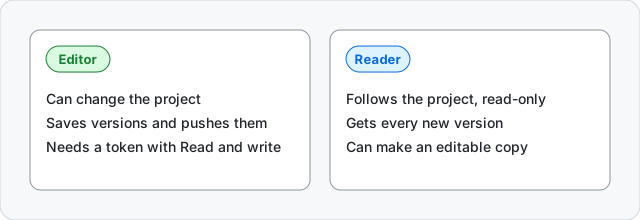
| Editor | Someone who can change the project and push. |
| Reader | Someone who follows the project but cannot change it. |
Before you start
You need:
- A GitHub account. It is free at github.com.
- A Skill Builder project with at least one saved version (select Save in the project). If you only want to follow a project someone else made, you do not need one.
- About 15 minutes.
Part 1: Turn it on
- Open Settings.
- Find GitHub sync and switch it on.
- You will see one of these:
- Connect GitHub (a button). This is the easiest way: choose it, sign in on GitHub, and allow Skill Builder. Then skip to Part 3.
- Connect with a personal access token (beta). Switch this on and carry on with Part 2. Read the yellow note first: it explains why you should take care with tokens.
Part 2: Create your repository and token
You only do this once for each project.
Step 1: Create a private repository
- Go to github.com and sign in.
- Select the + at the top right, then New repository.
- Give it a name, such as
team-skills. - Choose Private. This is important: it means only you and the people you invite can see it.
- Tick Add a README file.
- Select Create repository.
Step 2: Create a token for that repository only
A token is like a key that opens just one door. We will make one that opens only this repository.
- On GitHub, select your picture at the top right, then Settings.
- Scroll down the left menu and select Developer settings, then Personal access tokens, then Fine-grained tokens.
- Select Generate new token.
- Fill in the form:
- Token name: anything you will recognise, like
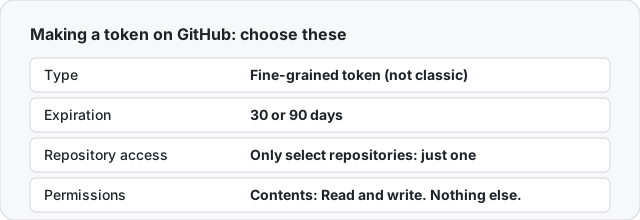
Skill Builder team-skills. - Expiration: choose 30 days or 90 days. Never choose “No expiration”. When it ends you simply make a new one.
- Resource owner: your own account (or your team’s organisation, if the repository belongs to it).
- Repository access: choose Only select repositories, then pick your new repository. Only that one.
- Permissions: open Repository permissions, find Contents, and set it to Read and write. If you only want to follow a project, choose Read-only instead. Do not add anything else.
- Token name: anything you will recognise, like
- Select Generate token.
- Copy the token now. GitHub shows it only once. Keep the page open until you have pasted it into Skill Builder in the next part.
Do not use a “classic” token. Skill Builder refuses them, because they can open every door in your account.
Part 3: Link your project
- Open your project in Skill Builder.
- Select the GitHub button next to the version number at the top.
- Type your repository as
your-name/team-skills, or paste its web address. - Choose how you connected:
- GitHub App: nothing more to enter.
- Token: choose Read and write, tick the box to say you understand the risks, and paste your token. Leave Remember on this device off unless this is your own private computer.
- Select Check repository. Skill Builder checks that it is private and empty (or has only a README).
- Select Link and push. Your saved version is now on GitHub.
Open your repository on GitHub and you will see your files. You are done with setup.
Part 4: Everyday use
Saving and sending your work
- Make your changes in Skill Builder.
- Select Save, and write a short note about what changed.
- Leave Push to GitHub ticked, then save.
That is all. Your version is saved on your computer first, so if you are offline nothing is lost: the badge by the version shows it is waiting, and you can send it later.
What the GitHub badge means
You will see a small GitHub badge by the version number.
| You see | It means |
|---|---|
| Editor (green) | You can change the project and send your versions. |
| Reader (blue) | You can follow the project. Its screen is read-only. |
| Paused (grey) | GitHub sync is switched off in Settings. Your project still works as normal. |
| A small dot | Something needs you: a newer version is waiting, or yours has not been sent yet. |
Select the badge any time to see the status and the buttons: Check now, See what changed, Push, and Disconnect.
Getting other people’s changes
When a teammate sends a new version, Skill Builder notices when you open the project or return to the tab.
- Select the badge.
- Select See what changed. You will see the new versions and their notes. Nothing has changed on your screen yet.
- Select Update this project if you are happy.
Changing your token
Tokens expire. When yours is about to, make a new one (Part 2), then open the project, select the badge, then Update token and paste it. You do not need to disconnect first, and nothing is pulled or replaced.
If you did disconnect, linking to the same repository again is fine: Skill Builder recognises your project, and tells you if you are already up to date. If you and a teammate both made changes in the meantime, it finds the last version you share and lets you Merge from there.
Part 5: Working with other people
Add your team
- On GitHub, open your repository, then Settings, then Collaborators.
- Select Add people and enter their GitHub name or email.
- They accept the invitation they get by email.
What each person does
- A teammate who will change the project makes their own token with Read and write (Part 2, using their GitHub account).
- Someone who only follows it makes a token with Read-only.
Everyone needs their own token. Never send yours to anyone.
Joining a project that already exists
- In Skill Builder, turn on GitHub sync (Part 1) and make your token.
- On the Projects page, select GitHub project.
- Enter the repository name, choose Read and write or Read only to match your token, tick the box, paste your token, and select Check repository.
- Select Import project. You now have the project and its whole history.
If two people changed it at the same time
Skill Builder never overwrites someone else’s work, and never mixes two people’s changes together without asking you. If a teammate sent a version before you did:
- Your push is refused with a message: “Someone updated this project on GitHub.”
- Select the badge, then See what changed.
- Select Pull and merge my changes.
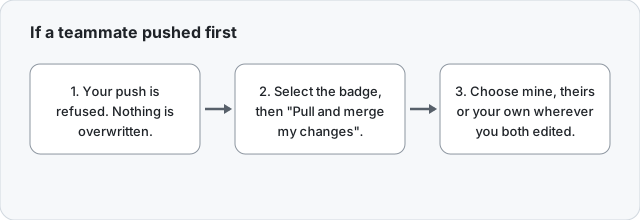
Skill Builder then compares three things: the version you last had, your changes, and your teammate’s changes.
- Where you changed different things, it keeps both without asking. For example, you edited one block and they edited another.
- Where you both changed the same thing, it stops and shows both side by side. You choose Mine, GitHub’s, or Write my own. Skill Builder will not guess.
- Where one of you removed something the other changed, it asks too.
You cannot go on until every one of these is settled. Then select Use the merged version. The result is not saved yet: read through it, then save a version and push as usual. As you are the one pushing, you are the one who checks that the result is right.
Keep Keep my current version as a copy first ticked if you want to be able to go back to exactly what you had. It is saved as a separate project called “(my changes)”.
If you would rather not merge, choose Update, and keep mine as a new project. This project becomes GitHub’s version, and your changes are kept in a new project called “(my changes)”, so nothing is lost: look at both and copy across what you want. Replace with GitHub’s, no copy discards your changes.
Text is compared one whole field at a time, not line by line: if you both changed the same paragraph, you choose one version or write your own.
If you are a Reader
A Reader’s project is read-only: you will see a blue note at the top, and changes you try to make will not stay. That is on purpose, so everyone sees the same thing. To experiment, select Make an editable copy. That gives you your own project, not linked to GitHub, which you can change freely.
Stopping
- Stop for one project: select the badge, then Disconnect from GitHub. Your project stays on your computer, and nothing on GitHub is deleted.
- Stop completely: in Settings, switch GitHub sync off. Skill Builder forgets every token on this device. Your projects keep working as normal.
- Delete the data on GitHub: delete the repository on GitHub. Skill Builder never deletes it for you.
Keeping it safe
- Keep the repository private. Skill Builder only uses private repositories unless you turn on Allow public repositories in Settings. If you do, anyone can see what you push, and every push to a public repository asks you to confirm first.
- Make a token for one repository only, with the smallest permission, and an end date.
- Never share a token, in a message, an email or a document.
- Never put passwords or secret keys in a skill. Skill Builder blocks a push that looks like it contains one, but nothing catches everything.
- If a token might have leaked, delete it on GitHub straight away (Settings, Developer settings, Fine-grained tokens), then select Disconnect in Skill Builder.
- Optional but wise: on GitHub, in your repository’s Settings, then Rules, add a rule for
mainthat blocks force pushes and deletions. This stops anyone with a stolen token from erasing your history. Do not require pull requests: Skill Builder sends changes straight tomain.
Using the GitHub App instead of a token is safer where your site offers it, because no token is kept in your browser at all.
When something goes wrong
| You see | What to do |
|---|---|
| “This repository is public” | Make it private on GitHub (repository Settings, then Change visibility), or use another repository. To use a public one on purpose, turn on Allow public repositories in Settings. |
| “The default branch is not main” | In repository Settings, rename the branch to main. |
| “This is a classic token” | Create a fine-grained token as in Part 2. |
| “GitHub could not find the repository” | Check the spelling, and that your token was made for that repository. |
| “GitHub did not accept the token” | It has expired or been deleted. Select Connect again and paste a new one. |
| “GitHub refused this” | Your token may be read-only, or a rule on main blocks direct changes. Check the token’s Contents permission, and remove any “require pull request” rule. |
| “This repository already holds other files” | Use a new, empty private repository for the project. |
| “Someone updated this project on GitHub” | Select the badge, then See what changed, then Pull and merge my changes. |
| “Connect again: no token in this tab” | A token is not kept after you reload, unless you chose Remember on this device. Paste it again. |
| A Reader cannot edit | That is on purpose. Select Make an editable copy. |
Questions people ask
Will my work be sent to GitHub without my knowing? No. Nothing is sent until you link a project, and then only when you save a version with Push to GitHub ticked.
Can GitHub or Skill Builder see my token? GitHub made it, so it knows it. Skill Builder keeps it only in a separate part of your browser tab that the page itself cannot read, sends it only to GitHub, and never to Skill Builder’s servers. With the GitHub App, the token never reaches your browser.
What if I lose my token? Make a new one (Part 2) and use Connect again. Nothing is lost.
What gets saved on GitHub?
Your project as a file (skill-builder.json), the skills and agents it produces as ordinary files, a CHANGELOG.md with each version’s note, and a README.md that Skill Builder writes for you. The README lists every skill and agent with its description, explains how to use the files, and links back to Skill Builder and its guides. It is rebuilt each time you push, so add your own words through the project’s description, not on GitHub. Edit in Skill Builder, not on GitHub: changes made to the generated files on GitHub are replaced the next time you push.
Can I use my existing repository? Only if it is empty (or has just a README), or it already holds a Skill Builder project. This stops a project being mixed in with other work.
Does this cost anything? No. Private repositories are free on GitHub.
More about how your information is handled is in the Privacy Policy and the Terms.